
Guides
A lot of what people ask about is already in Intip; it just needs switching on. Pick a topic and follow the steps.
Something feel off? Every computer is different, so sometimes a small thing doesn’t look quite right. Let us know on the Report page and attach intip.log (Settings → Help → Open log folder). Your report helps everyone.
Telegram notifications
Telegram on your laptop starts out with its own pop-ups, so Intip can’t see them. Change one setting in Telegram and you’re set.
More detailsHide details
Intip reads notifications from the Windows notification center. Telegram’s own pop-ups never reach it, which is why Telegram has to use Windows notifications.
- 1In Telegram, turn on “Use Windows notifications”: Settings→Notifications and Sounds→Use Windows notifications The names may differ if your Telegram isn’t in English.
- 2Make sure Telegram’s notifications are on in Windows: Windows Settings→Notifications→Telegram
- 3In Intip, make sure Notifications is on: Settings→Notifications
- 4The first Telegram message asks in the notch first. Click “Show”. Missed it? Turn it on here: Settings→Notifications→Telegram→Notch
More detailsHide details
The same Telegram row has two more columns: “Card” shows the message right away, and “Windows pop-ups” can be turned off so it doesn’t show twice. It still reaches the notch.
How to test Have a friend send you a Telegram message, in a chat you don’t have open. It shows up in the notch.
Still not working?
Nothing shows up at all
Check steps 1 and 2 again. Intip can only read notifications that reach the Windows notification center. Notifications from before Intip started aren’t picked up.
It shows in Windows, but not in the notch
Check steps 3 and 4 again, and make sure the “Show on the notch” switch in Settings → Notifications is on.
App not in the list yet? Turn its notifications on in Windows Settings → Notifications.
It comes in, but makes no sound or doesn’t pop up
That’s on purpose while “Do not disturb”, Game mode or “Quiet during focus” (Pomodoro) is on. Nothing gets lost; it just stays quiet for now. Only the sound missing? Check the “Sound” switch.
During a Pomodoro focus, notifications are summed up once it’s over; you can add Telegram under “Still show during focus:”.
WhatsApp Web notifications
WhatsApp Web notifications stay inside your browser, so Intip needs a small helper extension. It comes with Intip; you only add it to your browser once.
More detailsHide details
Your browser shows WhatsApp Web notifications in its own box, not through Windows, so Intip can’t read them directly. The extension passes them on to Intip over your own laptop (127.0.0.1), not the internet.
What exactly it reads: Privacy & security.
Watch it first
42 seconds, the same steps as below. The on-screen text is in Indonesian.
- 1In Intip, turn on “WhatsApp Web in the browser”: Settings→Notifications→WhatsApp Web in the browser
- 2Open your browser’s extensions page: copy the address and paste it into the address bar.
chrome://extensionsOn Brave? Try brave://extensions.edge://extensions - 3Turn on “Developer mode”.
- 4Click “Load unpacked” and pick this folder:Or click “Open extension folder” in Intip’s Settings → Notifications.
%LOCALAPPDATA%\Programs\Intip\ekstensi-chrome - 5Make sure your browser allows notifications from WhatsApp Web (“Allow”).
More detailsHide details
The extension only passes on notifications WhatsApp Web makes itself. If WhatsApp Web’s own notifications or the browser’s permission are off, there’s nothing to pass on.
- 6Done. A WhatsApp Web tab that’s already open connects right away.
More detailsHide details
No reload needed. The notifications follow the WhatsApp switches in Settings → Notifications, just like WhatsApp Desktop. With WhatsApp’s “Card” column off, you only get the WhatsApp icon in the notch. Intip only accepts these notifications while “WhatsApp Web in the browser” is on.
How to test Open WhatsApp Web, switch to another tab, then have a friend send you a message. It shows up in the notch.
Still not working?
The browser’s box shows up too
In Settings → Notifications → Apps, turn off “Windows pop-ups” on the WhatsApp Web row. When Intip is closed, the browser shows them again, so no message gets missed.
Nothing shows up in the notch
Check one by one:
- Intip is running.
- “WhatsApp Web in the browser” is on (step 1).
- WhatsApp’s “Notch” column in Settings → Notifications is on.
- The browser allows notifications from WhatsApp Web (step 5).
- The extension is switched on in the browser’s extensions page.
After updating Intip
The update puts the new extension in the same folder. Open the browser’s extensions page and click the reload button (↻) on the Intip extension.
The browser warns about Developer mode
Chrome sometimes reminds you about extensions added through Developer mode. That’s normal. Close the warning; don’t turn the extension off.
Removing the extension
Click “Remove” on the Intip extension in the browser’s extensions page.
What does the extension read?
Only the title and text of WhatsApp Web notifications, and it passes them to Intip on your own laptop, never over the internet. Details on Privacy & security.
Notifications showing up twice?
Usually one is from Intip and the other is a Windows pop-up. Turn off the Windows one and you’re set.
More detailsHide details
It can happen with any app: WhatsApp, Discord, Telegram and the rest. Intip still gets the notification from the Windows notification center with the pop-up off. With the taskbar replaced by Intip’s dock, Windows pop-ups don’t show anyway.
Watch it first
40 seconds, the same steps as below. The on-screen text is in Indonesian.
- 1In Intip, turn off “Windows pop-ups” for the app that shows up twice. It still reaches Intip. Settings→Notifications→Apps→Windows pop-ups
- 2Switch greyed out? Turn off that app’s banners in Windows Settings → Notifications instead. Leave its notifications on: Intip needs them.
- 3Using WhatsApp Web? Turn off “Windows pop-ups” on the WhatsApp Web row too. Settings→Notifications→Apps→WhatsApp Web→Windows pop-ups
More detailsHide details
With WhatsApp Web the second one is the browser’s own box. While Intip is closed, the browser shows them again, so no message gets missed.
Good to know Uninstall Intip and the Windows pop-ups come back on by themselves.
Notifications from other apps
Intip reads the notifications that reach the Windows notification center. Any app that sends its notifications there can show up in the notch too, not just WhatsApp and Telegram.
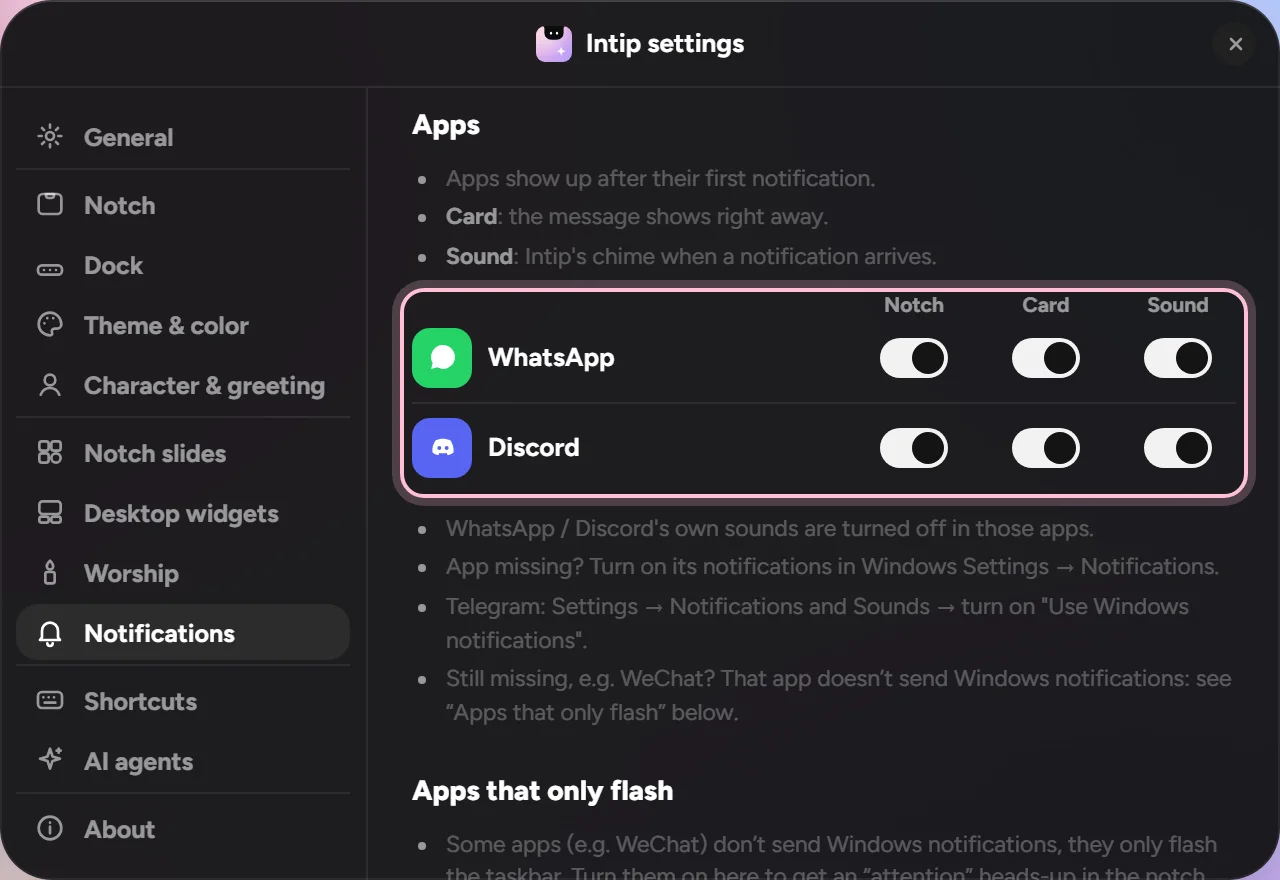
- 1Turn on the app’s notifications in Windows: Windows Settings→Notifications Check the app’s own notification settings too.
- 2Wait for its first notification. After that the app shows up in Intip’s Apps table: Settings→Notifications→Apps
- 3Pick what each app gets: Notch, Card (the message shows right away), Sound, and Windows pop-ups.
How to check Open the Windows notification center (Windows 11: Win+N, Windows 10: Win+A). If the app’s notification is there, Intip can read it.
Still not working?
It’s not in the Windows notification center
Some apps use pop-ups of their own instead of Windows notifications, and Intip can’t read those. Look in the app’s settings for an option like “Use Windows notifications”. Telegram Desktop is one of these apps.
What about WeChat?
It works the same way: if WeChat’s messages show up in the Windows notification center, Intip can read them. If they don’t, check WeChat’s notification settings and Windows Settings → Notifications.
It’s in the table, but not in the notch
Make sure the app’s “Notch” column and the “Show on the notch” switch in Settings → Notifications are on. Notifications from before Intip started aren’t picked up.
Add apps to the dock
There are three ways. Pick whichever is easiest for you.
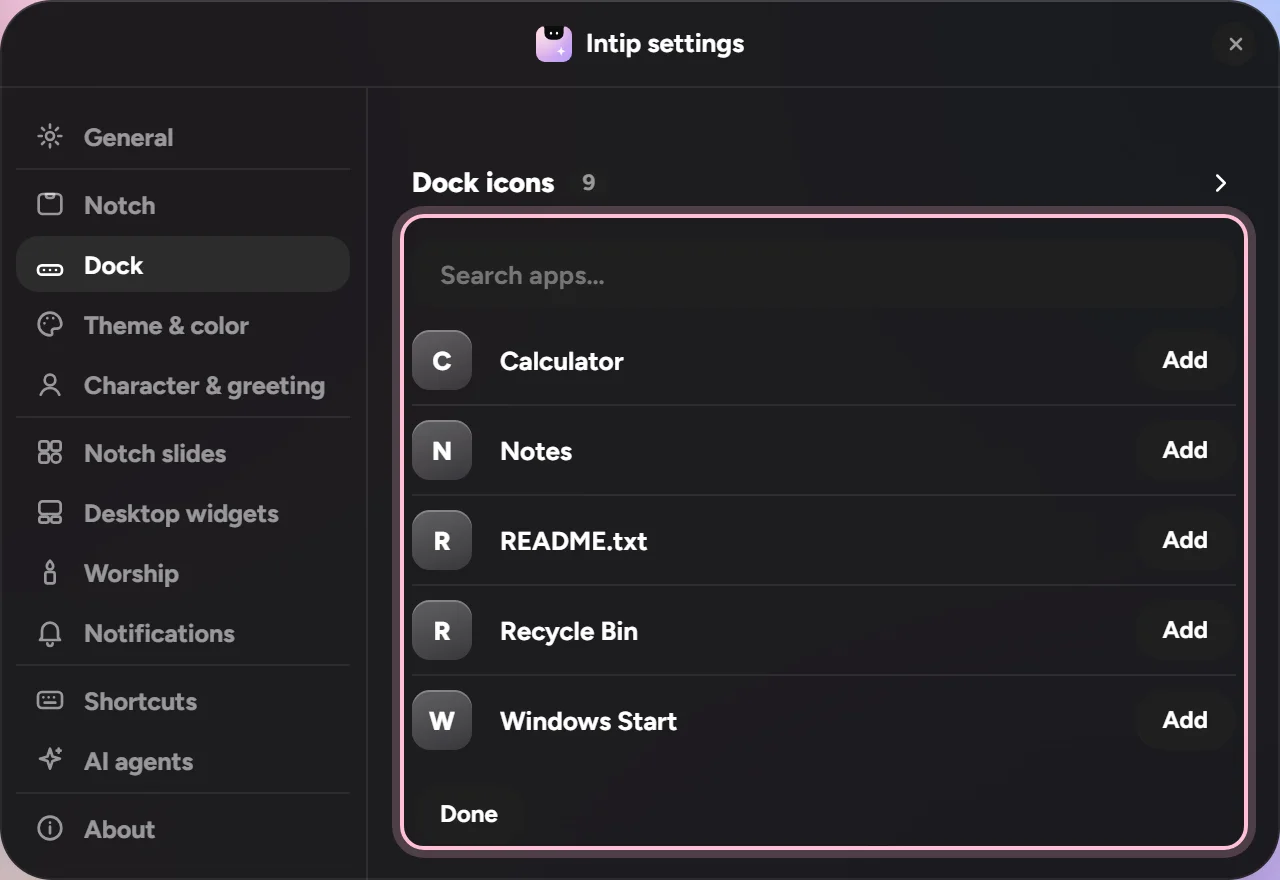
- 1From Settings: click “+ Add an app”, search for the app, then click “Add”. Settings→Dock→+ Add an app
More detailsHide details
Press Enter in the search box to add the top result. You can also right-click an empty spot on the dock and pick “Add an app…”.
- 2Drag a shortcut or an app (.exe) from the desktop or File Explorer and drop it on the dock.
- 3From Intip’s Start (the four-squares icon at the left end of the dock): right-click the app, then pick “Pin to dock”.
Good to know Want a different order? Drag the icons right on the dock. Pull one up to remove it.
Windows taskbar showing along with the dock?
To keep only Intip’s dock on screen, turn on one switch.
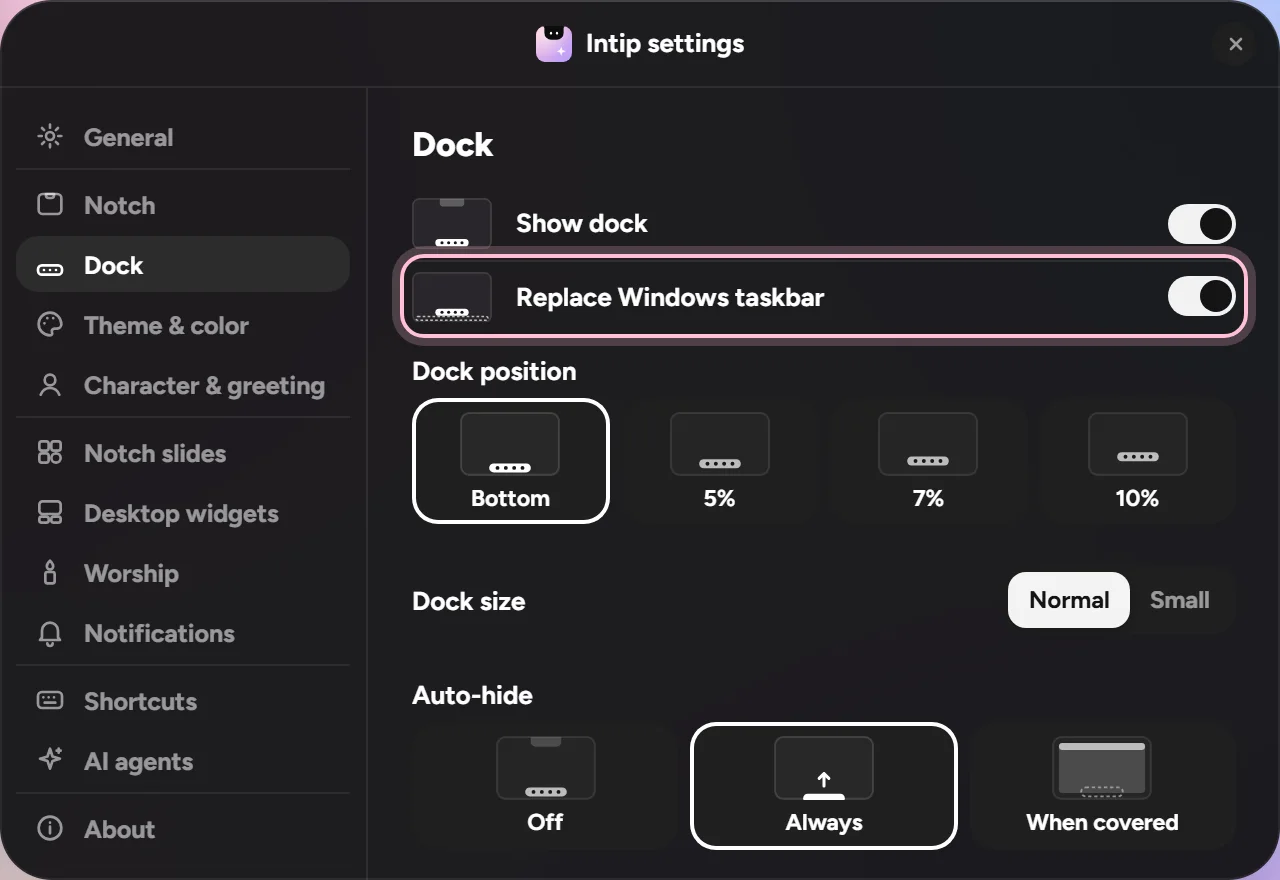
- 1Turn on “Replace Windows taskbar”: Settings→Dock→Replace Windows taskbar
- 2That’s it. The Windows taskbar hides while Intip runs and comes back when Intip closes.
Good to know While the taskbar is replaced, Windows notification pop-ups don’t show. The notifications still reach Intip.
Make the Windows key open Intip’s Start
Want the Windows key on your keyboard to open Intip’s Start instead of Windows Start? Change one option.
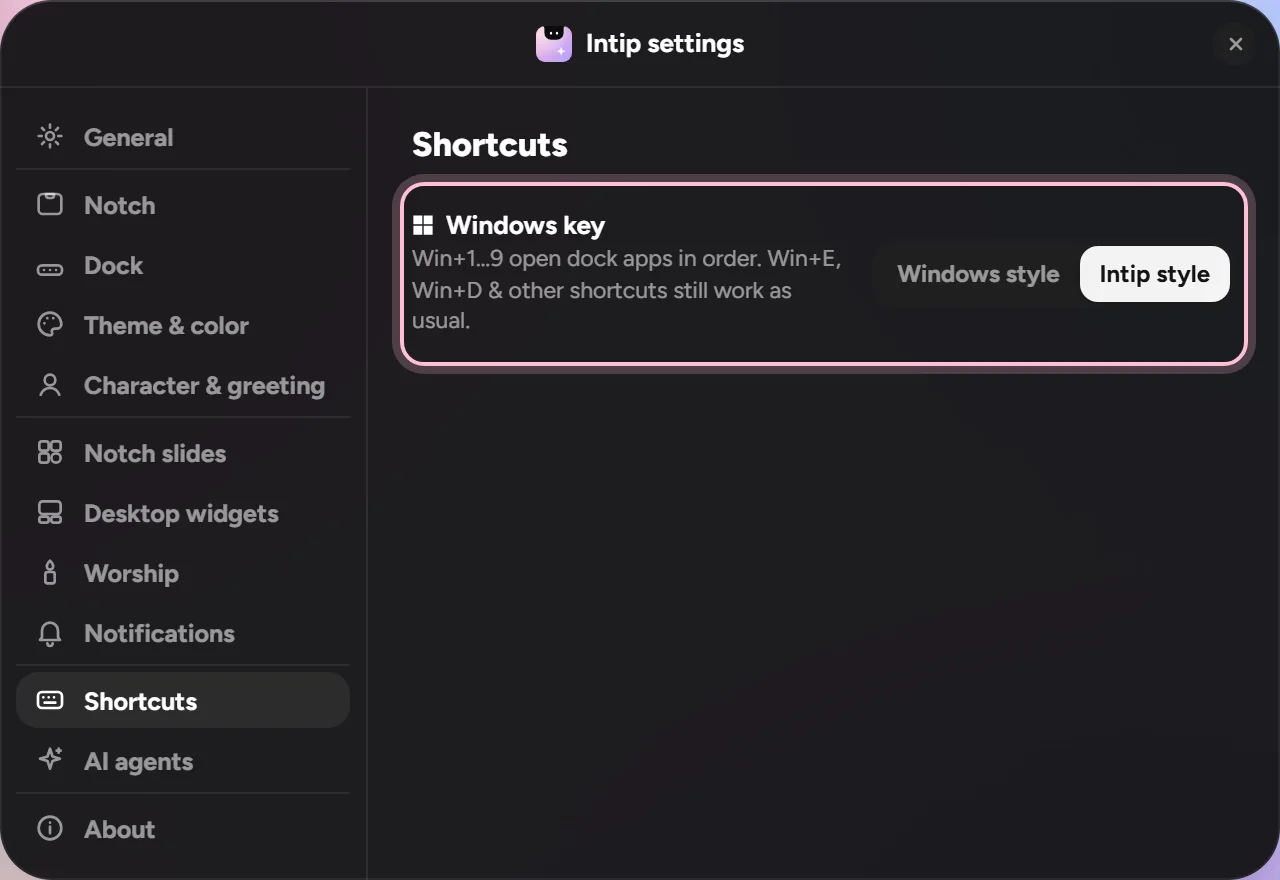
- 1Pick “Intip style”: Settings→Shortcuts→Windows key→Intip style
- 2Press the Windows key: Intip’s Start opens now.
- 3Bonus: Win+1 to Win+9 open the dock apps in order. Win+E, Win+D and other shortcuts still work as usual.
Good to know If it says “Not available on this PC yet.” under Windows key, this option doesn’t work on your PC yet. While you’re playing a game, the Windows key opens Windows Start as usual.
Dock size & position
Dock too big? Or want it a bit higher up? Both are in Settings → Dock.
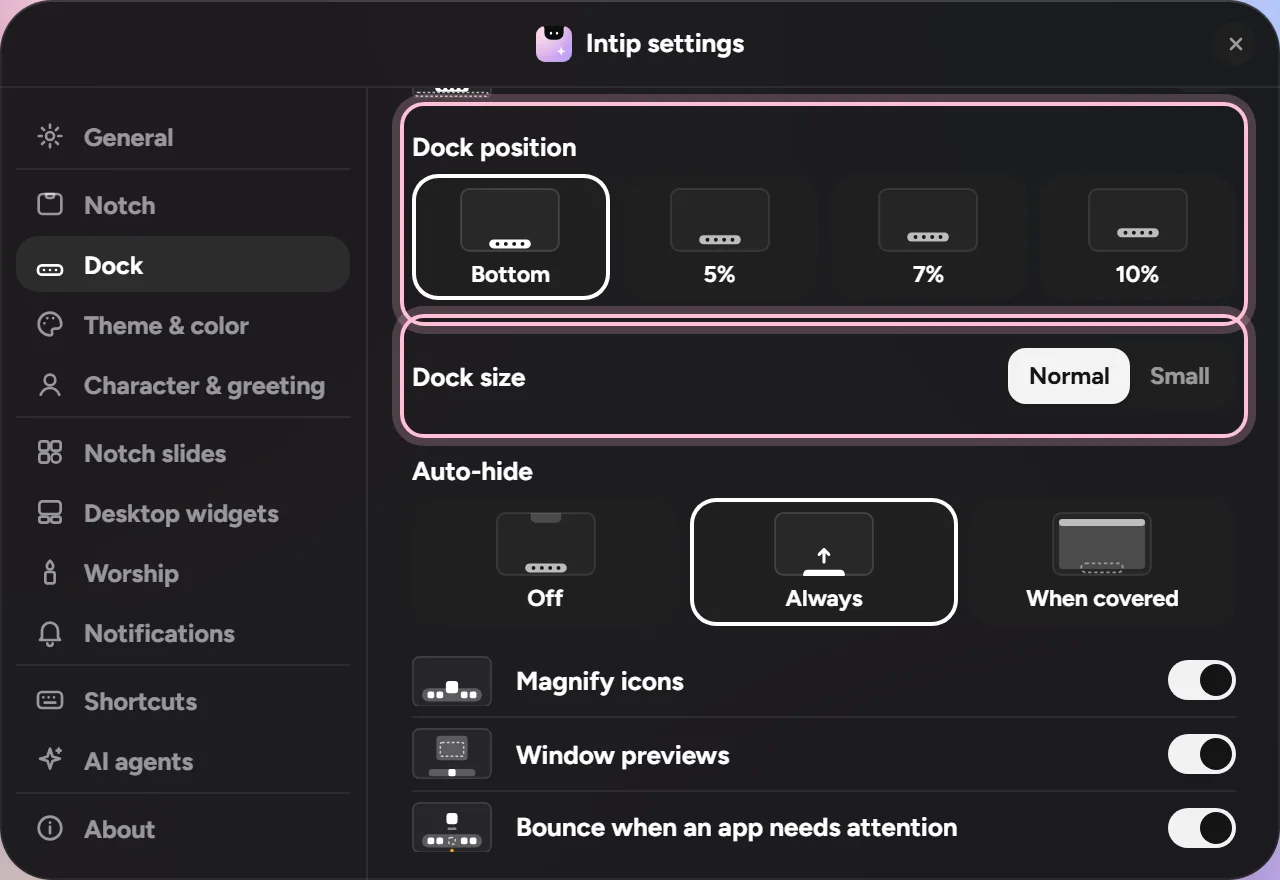
- 1Pick a size: Normal or Small. Settings→Dock→Dock size
- 2Want the dock to sit higher? Pick a position: Bottom, 5%, 7% or 10% up from the bottom of the screen. Settings→Dock→Dock position
Good to know More dock sizes are coming soon.
The notch and dock while gaming
Intip can get out of the way by itself when a game or video goes full screen. You choose how.
Watch it first
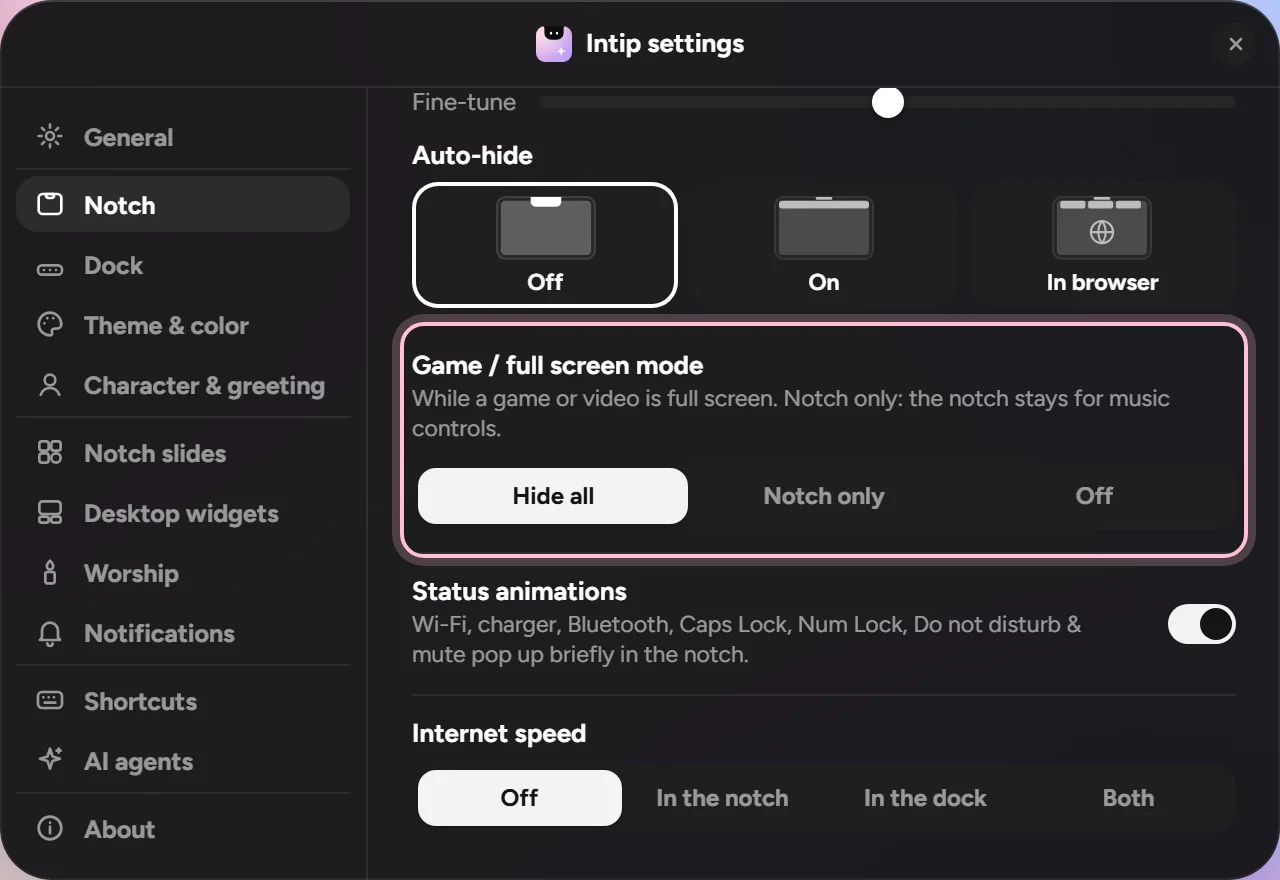
- 1Open “Game / full screen mode”: Settings→Notch→Game / full screen mode
- 2Pick one:
- Hide all: the notch and dock get out of the way.
- Notch only: the notch stays so you can control your music.
- Off: Intip stays the same as always.
- 3A normal app got treated like a game? Right after it happens, click the “Not a game” button with that app’s name under Exceptions. Settings→Notch→Exceptions
Good to know Want the notch to stay visible over a game? In the game’s graphics settings, pick the Windowed Fullscreen (or Borderless) display mode. In regular Fullscreen mode, Windows hands the whole screen to the game, so the notch can’t show on top of it. Before Intip 0.8 this setting was under Settings → Appearance.
Still not working?
The notch disappears in a game, even with “Notch only”
The game is in regular (exclusive) Fullscreen mode: Windows hands the whole screen to the game, so nothing can show on top of it, the notch included. Switch the game’s display mode to Windowed Fullscreen or Borderless in its graphics settings.
Specs & saving resources
Intip is light: it usually uses about 250–300 MB of RAM, and almost no CPU while you aren’t using it.
Minimum
- Windows 10 (version 1809 or newer) or Windows 11, 64-bit
- 4 GB of RAM
- About 150 MB of free disk space
Recommended
- Windows 11, 64-bit
- 8 GB of RAM or more
- Graphics with drivers installed (built-in Intel or AMD graphics is enough)
Make Intip lighter
- 1Turn on Eco mode: Settings → General → Eco mode → Automatic. Animations that run nonstop stop while the laptop is on battery or Battery saver is on.
- 2Use a regular theme instead of a live theme (Album Aura, Living Paper, Liquid Glass, Galaxy): Settings → Theme & color.
- 3Turn on only the desktop widgets you use: Settings → Desktop widgets.
- 4Don’t need the live internet speed? Settings → Notch → Internet speed → Off.
- 5On a slower PC, also turn off the Corner buddy and the Genie effect if you use them.
Good to know Memory can rise for a moment while Mission Control, Start or Settings is open, and goes back down by itself a few seconds after you close it.
Google Calendar in Intip
With Sign in with Google (Plus), your Google Calendar events show in Today, and timed items you make in Intip can go to Google too. It stays off until you sign in.
- 1Turn on the Today slide: Settings→Notch slides→Today
- 2Under Calendar, click “Sign in with Google”: Settings→Notch slides→Calendar→Sign in with Google
- 3Google’s sign-in page opens in your browser. Pick your account and allow access, then go back to Intip. Your email and your calendars appear in Settings; use the switch next to each calendar to show or hide it.
- 4Optional: to send new timed items from Intip to Google, pick a calendar under “Send new events to”. By default nothing is sent.
- 5To disconnect, click “Sign out” in the same Google Calendar row. Intip revokes its access at Google and deletes the stored data from your PC.
Good to know You sign in on Google’s own page, so your password never passes through Intip. Your Google data goes straight from Google to your PC, not through an Intip server. What Intip reads and writes
Still not working?
The button says “Not set up in this version yet.”
This Intip build doesn’t include Google sign-in yet. Update Intip to the latest version.
“Permission was revoked or expired. Sign in again.”
The permission was removed at Google (for example at myaccount.google.com/permissions) or has expired. Click “Sign in with Google” again in the same row.
Music from other players
Intip reads the song from Windows’ media controls, the same box that shows up when you press a volume key. A player that doesn’t send its song there can’t be read.
- 1Check first: play a song, then press a volume key on your keyboard. If the song title shows up in the Windows box, Intip can read it too.
- 2Not there? Look in the player’s settings, or its plugins, for Windows media controls support.
- 3On MusicBee: install the “Windows 10 Media Control Overlay” plugin from MusicBee’s add-ons page. Put its .dll file in MusicBee’s Plugins folder, then restart MusicBee. Plugin page (getmusicbee.com) ↗
Good to know Spotify, YouTube in the browser and Windows’ own Media Player usually send their songs there already.
Automatic update failed?
Updating from 0.9 could stop with “Failed to uninstall old application files” when an Intip process was stuck. Installing again from the web fixes it, and your settings stay as they are.
- 1Download the latest Intip installer. Download the latest Intip
- 2Open the installer and follow the steps. No need to uninstall first.
- 3Done. From 0.9.1 on, the installer closes a stuck Intip by itself, so later updates go through on their own.
Number keys opening dock apps?
That was a bug: after the screen was locked (Win+L) or an admin permission screen (UAC) came up, Intip sometimes thought the Windows key was still held down. It’s fixed in Intip 0.8.
- 1Update Intip to the latest version. Download the latest Intip
- 2Haven’t updated yet? Press the Windows key once and the numbers go back to normal.
AI agents (Claude Code & co.)
The notch shows when Claude Code, Codex, Hermes or Antigravity is working, and lets you know when it’s done. It all stays on your laptop; nothing is sent to the internet.
More detailsHide details
Intip reads the agents’ session history saved on this laptop. For Claude Code you can also answer its permission requests and questions right from an Intip card.
Which folders exactly: Privacy & security.
Watch it first
50 seconds, the same steps as below. The on-screen text is in Indonesian.
- 1Turn on the agents you use. One that isn’t installed on this laptop can’t be turned on. Settings→AI agents
- 2Using Claude Code? Also turn on “Answer permissions from Intip”, then start a new Claude Code session. Its permission requests and questions show up as cards: Allow, Deny, or Open.
More detailsHide details
It applies to new sessions only. “Open” means you answer in Claude itself. The switch adds one small setting to Claude Code and removes it again when you turn it off:
~/.claude/settings.json - 3Done. Use your agents like always: a dot on the notch means it’s working, and a card comes up when it’s done.
More detailsHide details
The dot takes the color of the agent that started last (Claude Code orange, Codex green, Hermes yellow, Antigravity blue). Each one gets a “done” card with a snippet of its reply; several cards stack up and spread out when you hover over them. Permission and question cards are for Claude Code only.
How to test Start a new Claude Code session and ask it to run a command. The permission card shows up in Intip.
Good to know
The question also shows up in Claude
That’s normal. Answer it wherever you like; the first answer counts. Answer it in Claude and the Intip card goes away. Leave the card for 60 seconds, or click Open, and Claude just asks as usual.