Plus & Pro features
Intip is a notch & dock app for Windows, and it's free to use. Plus and Pro are a one-time payment, yours for life.
- Plus$4.99pay once · 1 device
- Pro$9.99pay once · 2 devicesEverything in Plus
Tap a feature to see where to turn it on.
Productivity
-
 Reminders for timed to-dos from the Today & Notes widgetPlus
Settings → Desktop widgets → Today & Notes ⚙ → Remind me of timed to-dos. Give the task a time.
-
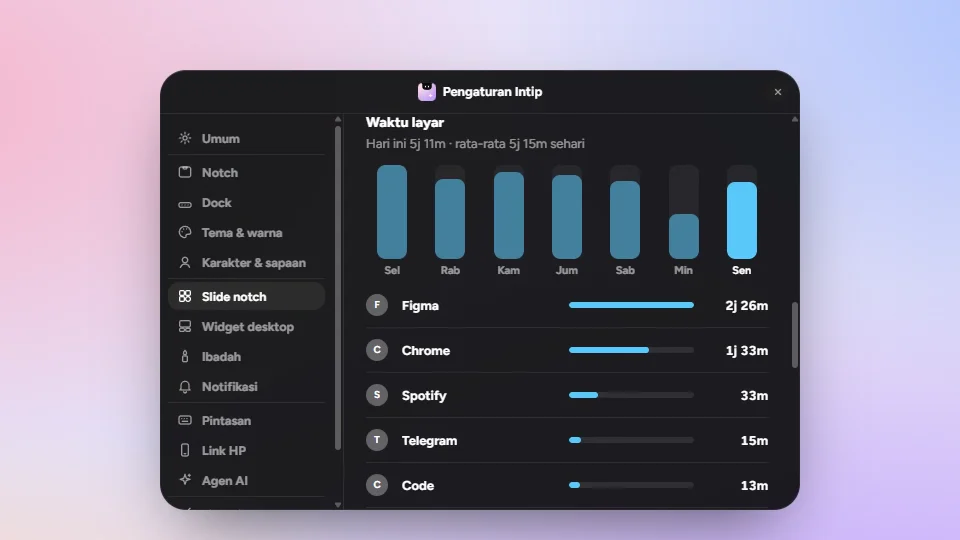 Screen time: see which apps your day goes toPlus
Settings → Notch slides → turn on Screen time. Click a bar to see that day; only app names and time are kept, 30 days.
-
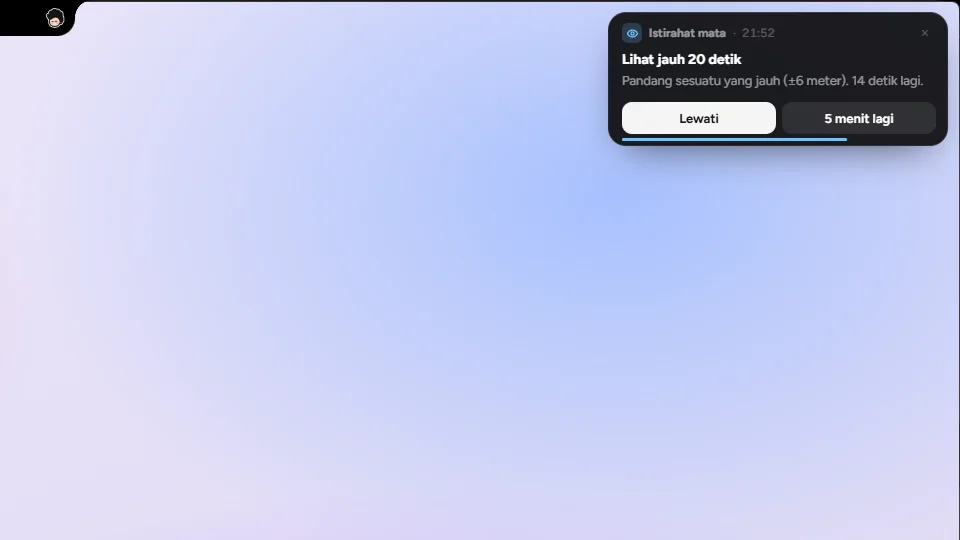 20-20-20 eye breaks: a reminder to look away every 20, 30 or 45 minutesPlus
Settings → Notch slides → Eye break → 20-20-20 reminder. Every can be 20, 30 or 45 minutes.
-
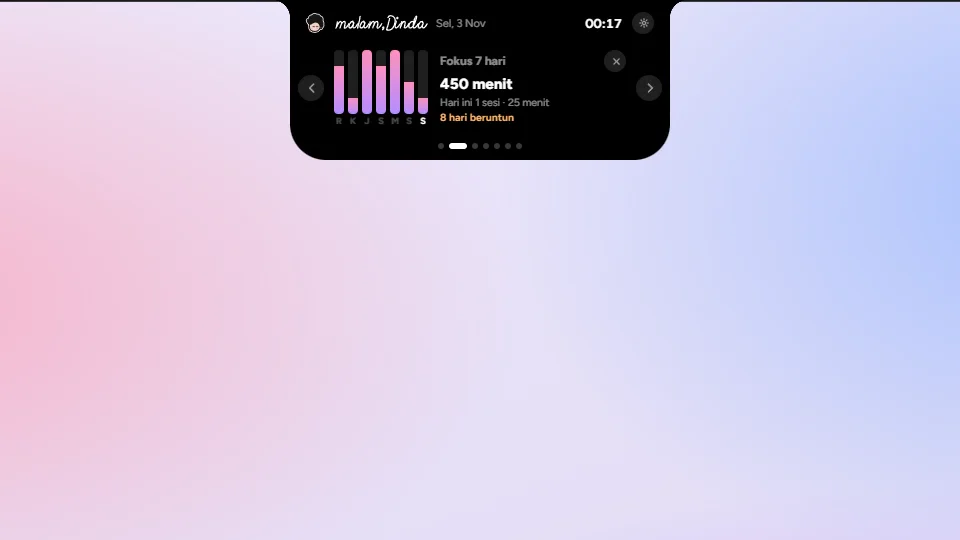 Focus Plus: stats, background sounds and any session lengthPlus
Settings → Notch slides → Pomodoro → Focus time → Custom: 5–120 focus minutes, 1–30 stand-up. Stats: View.
Clipboard history in the notch: text, images & filesPlus
Settings → Notch slides → turn on Clipboard. Click an item to copy it again; pinned items stay, the rest clears when Intip closes.
Photo widgets on the desktopPlus
Settings → Desktop widgets → Photos. Pick a layout, then Add photos… or drag photos onto the widget. Up to 6 widgets.
Mirror: your front camera for a quick check before a video callPlus
Settings → Notch slides → turn on Mirror. The camera starts after you click Turn on camera; change it under Camera turns on.
Hot corners, like on a MacPlus
Settings → Shortcuts → Hot corners: pick an action per corner (all off by default), then hold the cursor in that corner.
Battery level of Bluetooth earbuds & headsetsPlus
Shown in the Bluetooth list of the dock's quick settings, and on a card when connected. Only devices that report battery to Windows.
Spotlight-style search: Win+S or Alt+Space opens a search box in the notchPlus
Off by default: pick Win + S or Alt + Space in Settings → Shortcuts → Search bar.
Sign in with Google: Google Calendar events in the Agenda, and new events can go to GooglePlus
Settings → Notch slides (Today on) → Calendar → Sign in with Google. Intip items go to Google only if Send new events to is set.
Subscribe to Google or Outlook calendars with an iCal linkPlus
Settings → Notch slides (Today on) → Calendar → Add link. Paste an .ics link; read-only, up to 10 calendars.
Sound packs for notifications, alarms and remindersPlus
Settings → Notifications → Sound pack: one for Notifications, one for Alarms & reminders. Click a pack to hear it.
Quick Look: press Space to preview a filePro
Settings → Shortcuts → Quick Look → Space to preview. Select a file in Explorer or on the desktop, press Space; Esc closes.
Send files to your phone with a QR codePro
Turn on Settings → Notch → Side notch. Drag files into its shelf, click the phone button, scan the QR. Same Wi-Fi only.
9router widget: your AI account quotasPro
Settings → Desktop widgets → 9router. Fill in the Address of your local 9router (localhost only) and its dashboard password.
File shelf in the notch: drag files in, drag them out again laterPro
Settings → Notch slides → File shelf. Drag files onto the notch; files are not copied, the shelf remembers them until cleared.
Phone Connect: text & files both ways with iPhone or Android, plus your Android screen on the PCPro
Settings → Tools → Phone Connect → Connect phone → Open, then scan the QR. Android screen needs a one-time scrcpy download.
AI usage: tokens and limits of Claude Code, Codex, Antigravity & Gemini CLIPro
Settings → Tools → AI agents → AI usage → Notch slide, then switch on each tool. Read from local history on this PC.
Pro widgets: Habits, PC stats, Music, AI usage, Weather, Calendar, phone battery, Focus & Stack, with Matrix, Pop, Tint & Floating stylesPro
Settings → Desktop widgets: switch on a card, then ⚙ → Style. You can also right-click the widget → Style.
Meetings from the notch: a countdown and a Join button for Meet, Zoom, Teams & WebexPro
Settings → Notch slides → Today → Meetings from the notch (default 5 minutes before). Only events with a meeting link.
Looks & characters
-
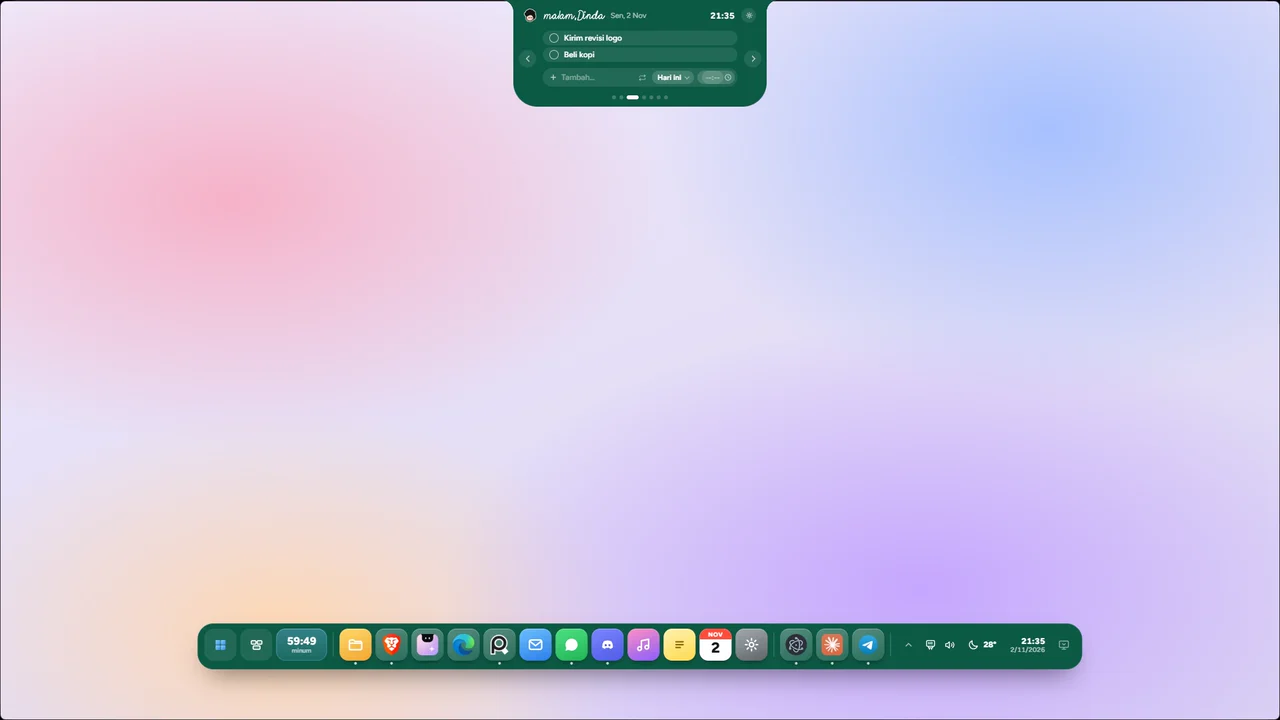 9 color themes: Sakura, Milk coffee, Paper and 6 solid colorsPlus
Settings → Theme & color → Notch theme and Dock theme; each is picked separately.
-
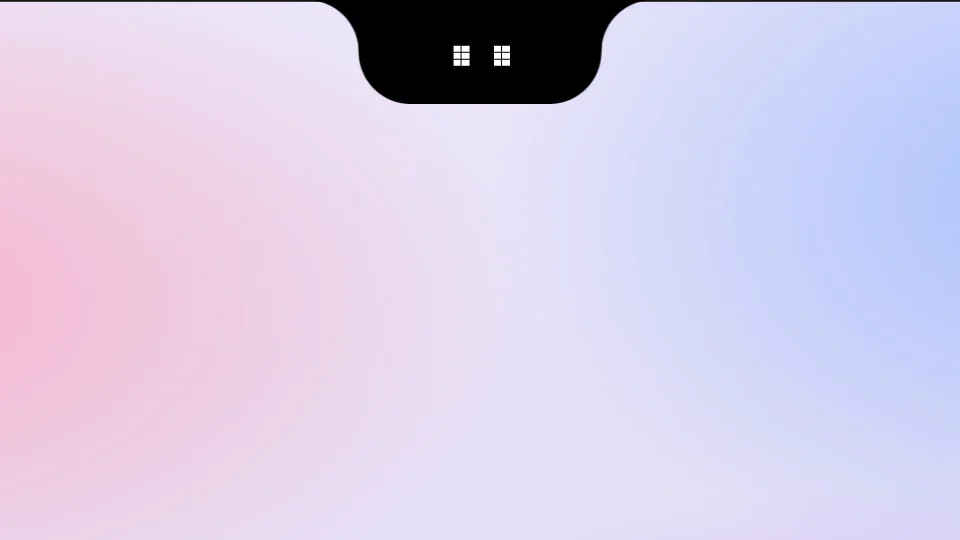 Notch eye styles: Smile, Pixel, Sleepy, EyeballPlus
Settings → Notch → Idle notch → Eyes, then pick under Eye style.
-
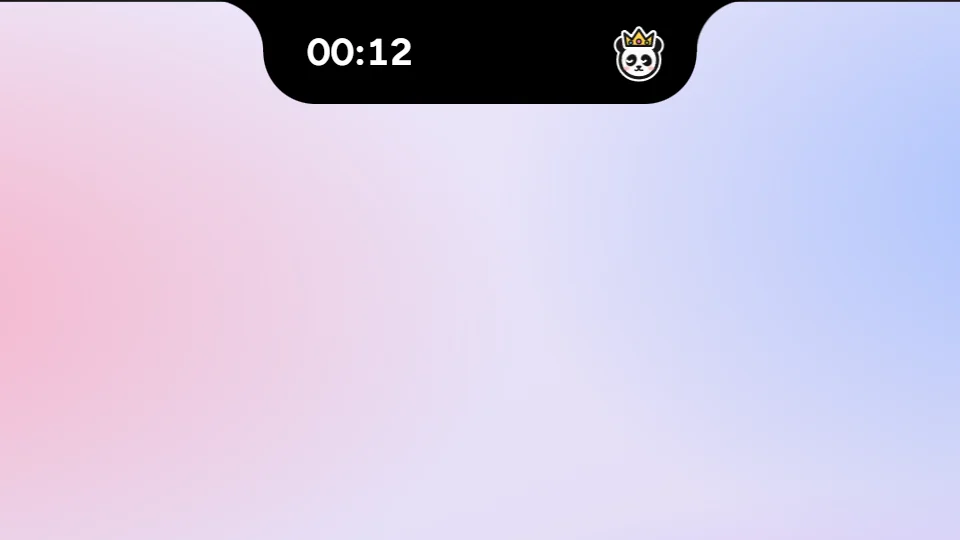 Cat & dog charactersPlus
Settings → Character & greeting → pick Cat or Dog. It shows in the notch; its expression follows the time of day.
-
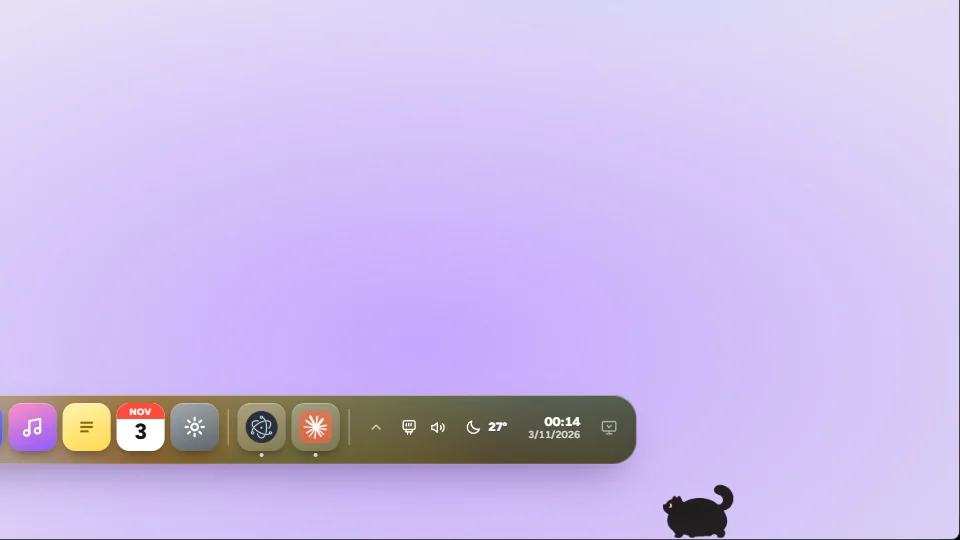 Corner buddy: chubby black & chubby white catsPlus
Settings → Character & greeting → Corner buddy → Show buddy, Style: Strolling. Click makes it jump; drag to move it.
-
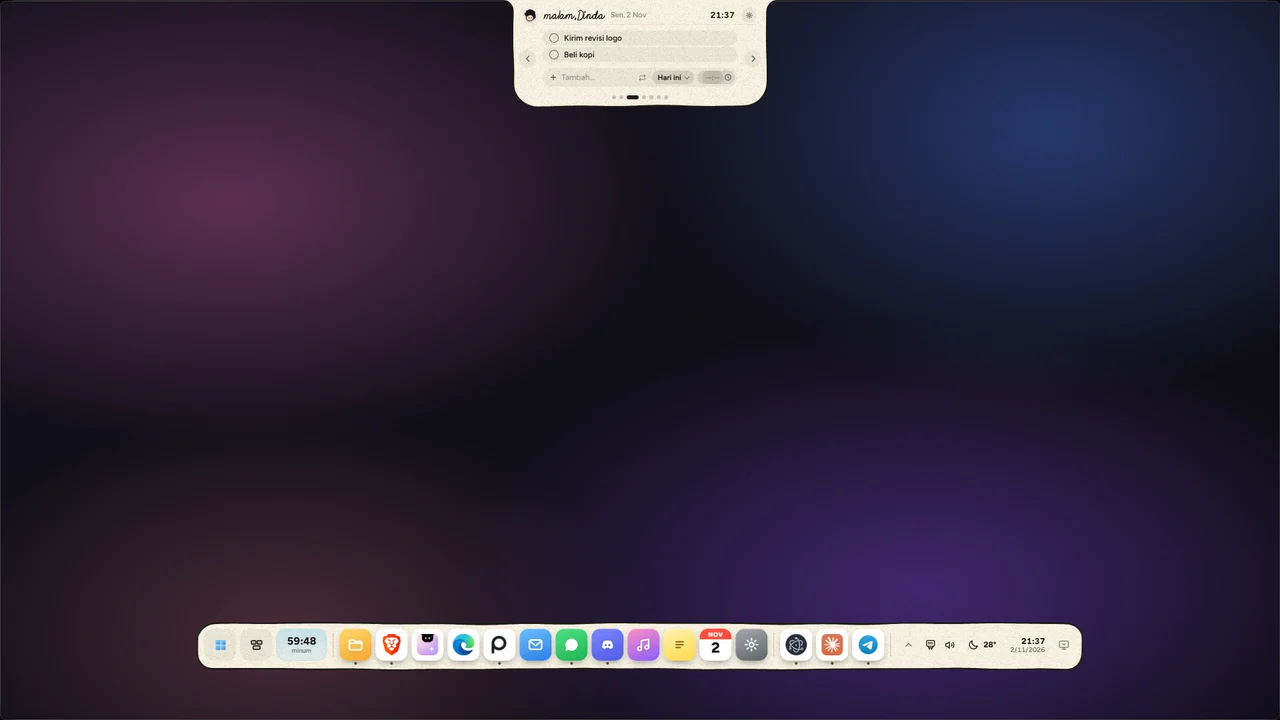 Galaxy, Album Aura, Living Paper, Liquid Glass & Galaxy Pro themesPro
Settings → Theme & color → Notch theme / Dock theme, Pro group. The animation pauses when Eco mode is on.
-
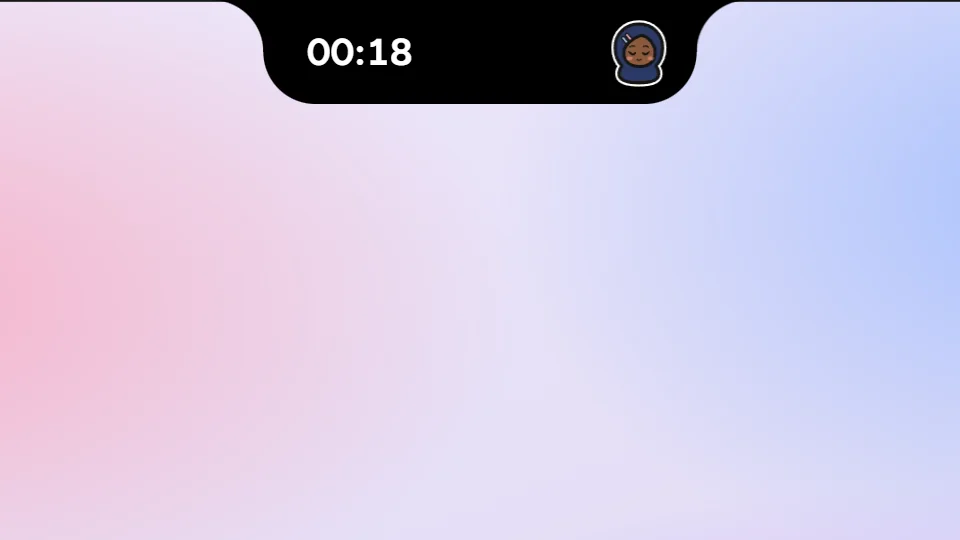 Custom character: skin, hair & hijab colors, eye style, blush & frecklesPro
Settings → Character & greeting → Colors & face. People get skin, hair and hijab colors; animals get fur and pattern colors.
-
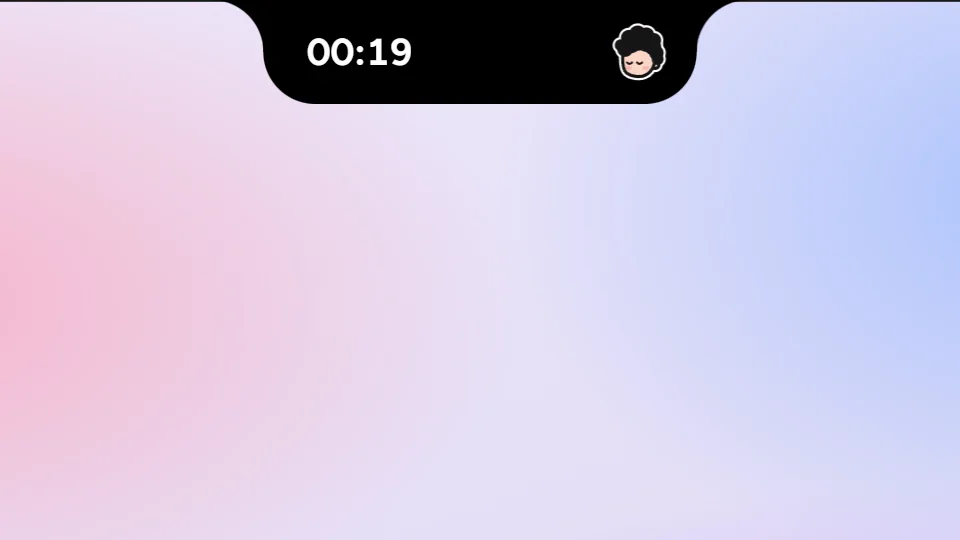 Illustration style V2: no outlines, new-look animalsPro
Settings → Character & greeting → Illustration style → V2: no outlines or sticker border, new-look animals.
Your own font for the clock & handwritingPlus
Settings → Theme & color → Clock & handwriting font → Choose font… (.ttf, .otf, .woff, .woff2).
Pink, Peach & Teal accent colorsPlus
Settings → Theme & color → Accent color: Pink, Peach or Teal. Tints timer & prayer rings, switches, highlights.
Character accessories: Beanie, Bow, FlowerPlus
Settings → Character & greeting → Accessories. Only ones that fit the character show (no Beanie for cats and bunnies).
Bunny & panda charactersPro
Settings → Character & greeting → pick Bunny or Panda. Either can also be the Corner buddy in Peeking style.
Corner buddy: handsome & pretty catsPro
Settings → Character & greeting → Corner buddy → Style: Strolling, then pick Handsome black or Pretty white.
Accessories: Crown, Peci cap, Grad cap, Party hat, HaloPro
Settings → Character & greeting → Accessories. Peci cap only fits Man and Bearded man.
A hello in the middle of the screen when Intip startsPro
Settings → Character & greeting → Greeting → Opening greeting: Once a day or Every time Intip starts. Click to skip.
Dock
-
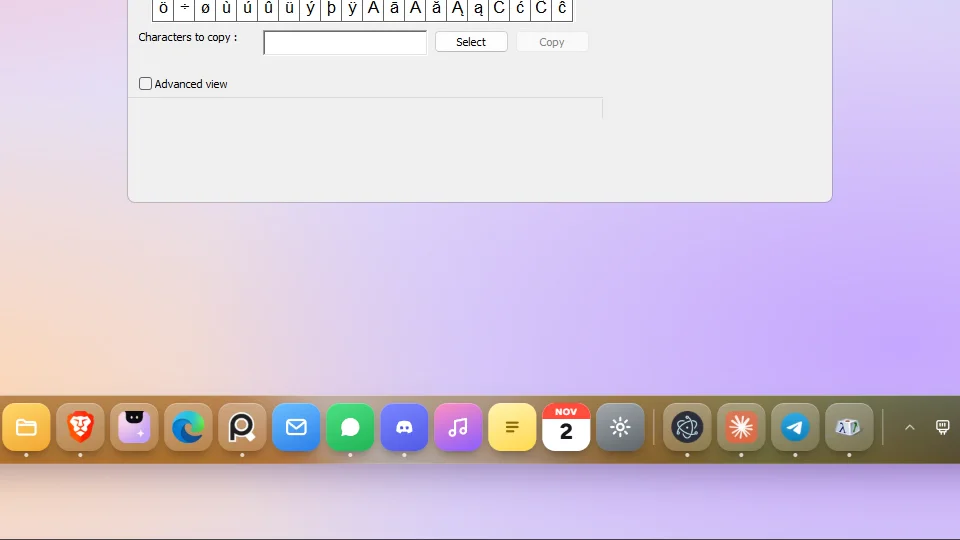 Genie effect when you minimize a windowPro
Settings → Dock → Genie effect. A window minimized from the dock is sucked into its icon and comes back out when opened.
-
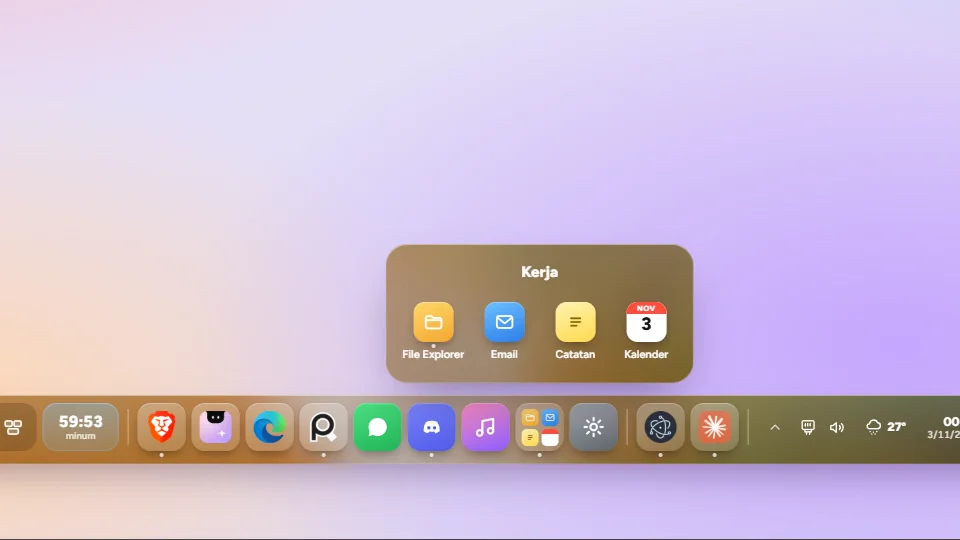 Folders in the dockPro
Drag an icon in the dock and hold it right on the middle of another icon (hint in Settings → Dock → Dock icons).
-
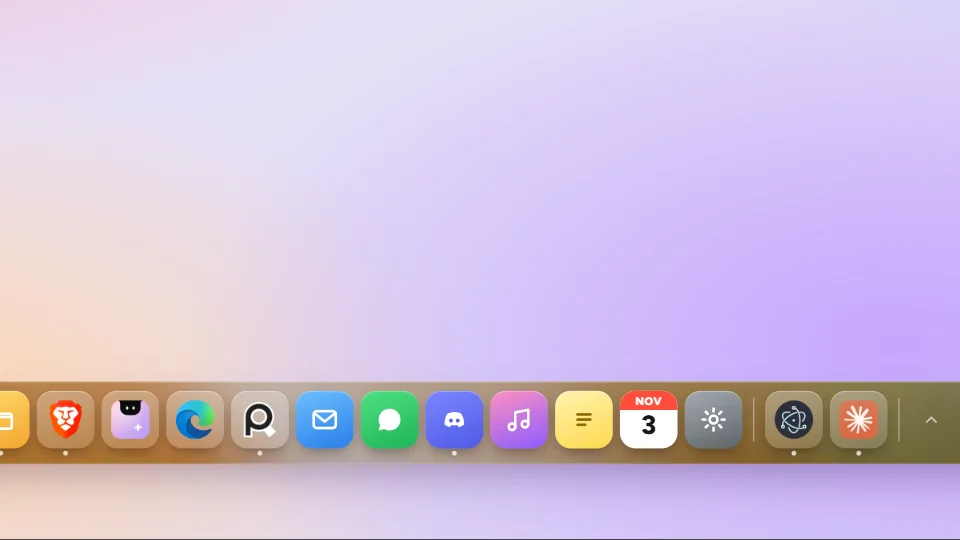 Your own dock size, from 60 to 120%Plus
Settings → Dock → Dock size → Custom, then drag Dock scale (60–120%, steps of 5).
A Windows 11-style Start menuPro
Settings → Dock → Dock contents → Start menu → Windows style.
Pill-shaped dockPro
Settings → Dock → Dock shape → Pill. The Start button becomes round too.
Several monitors: the dock on the screens you pickPro
Settings → General → Screen: each screen has its own Dock switch. Make main moves the notch to that screen.
The dock keeps its own space: windows stop above itPro
Settings → Dock → Auto-hide → Windows above. While it is on, the dock position is locked to Bottom.
Notch & screen
-
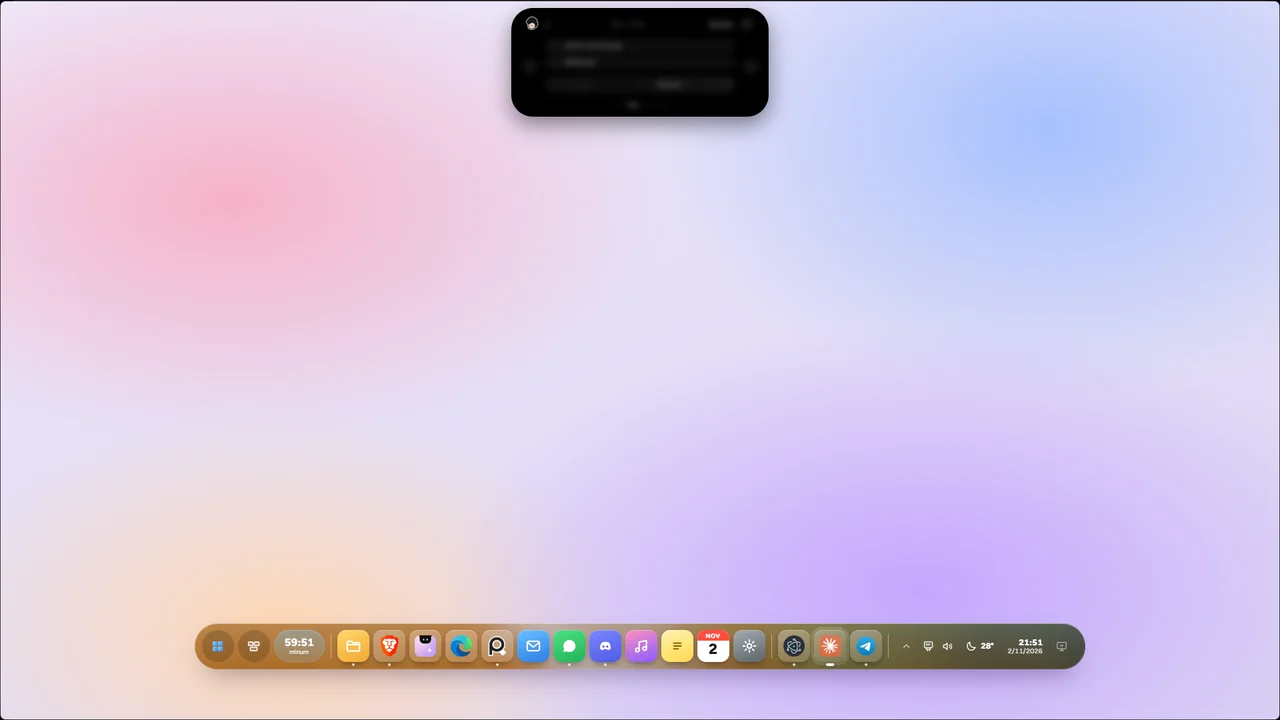 Dynamic Island: a floating notchPro
Settings → Notch → Notch shape → Dynamic Island. Then set Gap from top (4–16 px).
-
 Rounded window corners & side notchPro
Corners: Settings → Theme & color → Rounded window corners. Side notch: Settings → Notch → Side notch.
Mission Control: every open window on one screenPro
Settings → Shortcuts → Mission Control: dock button and Shortcut (default Ctrl + Alt + ↑). Esc goes back.
The notch on your other screens tooPro
Settings → General → Screen: switch Notch on for each extra screen (needs two or more screens).
Set up each screen: notch & dock on or off per monitorPro
Settings → General → Screen: each screen card has Notch and Dock switches, remembered per monitor even when unplugged.
Try the free version first
Plus and Pro unlock inside the same app. Your settings stay as they are.